Setting Up Your Own Android Work Profile
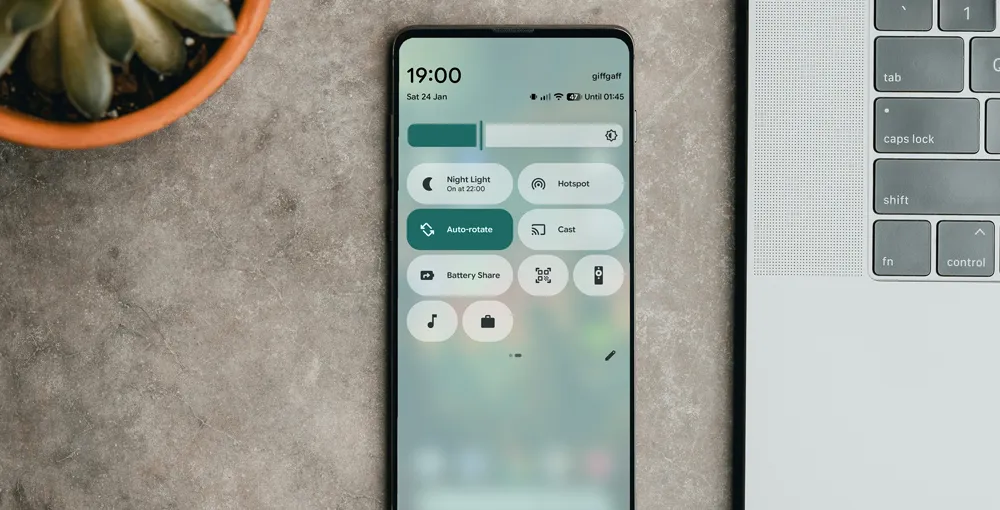
I have previously used an Android work profile when installing work apps on my personal phone. This has always been great, as this isolated my work account from my personal one and with a single click I could turn on or off all work apps and notifications.
However this was all configured for me through Microsoft Intune via my employer. If you want a second set of applications and accounts on your own, or your employer has not configured the use of Android work profiles then we can now set this up ourselves.
What is an Android Work Profile
Before we get started let me just explain a little more about the work profile. Android allows you to set up an isolated restricted section of your phone with its own set of applications and settings.
The use of this can be enforced through Microsoft Intune or Google workspaces if a company selects the option. This has the benefit that the company can restrict the possible apps and remotely wipe or reset just that isolated section of a person’s phone without access to the remainder of it. For this scenario where we are setting it up for ourselves however that is not so relevant.
For the individual the isolated work profile has the benefit that you can keep your work and personal side of your phone completely isolated from each other. The biggest benefit however is that you can toggle on or off all the work applications and notifications with a single tap of a button from the tray.
This is detailed more on the Google Help page.
How to Setup your Own Work Profile
- Install the free Island app from the Play Store.
- Open Island and follow the prompts to configure your work profile.
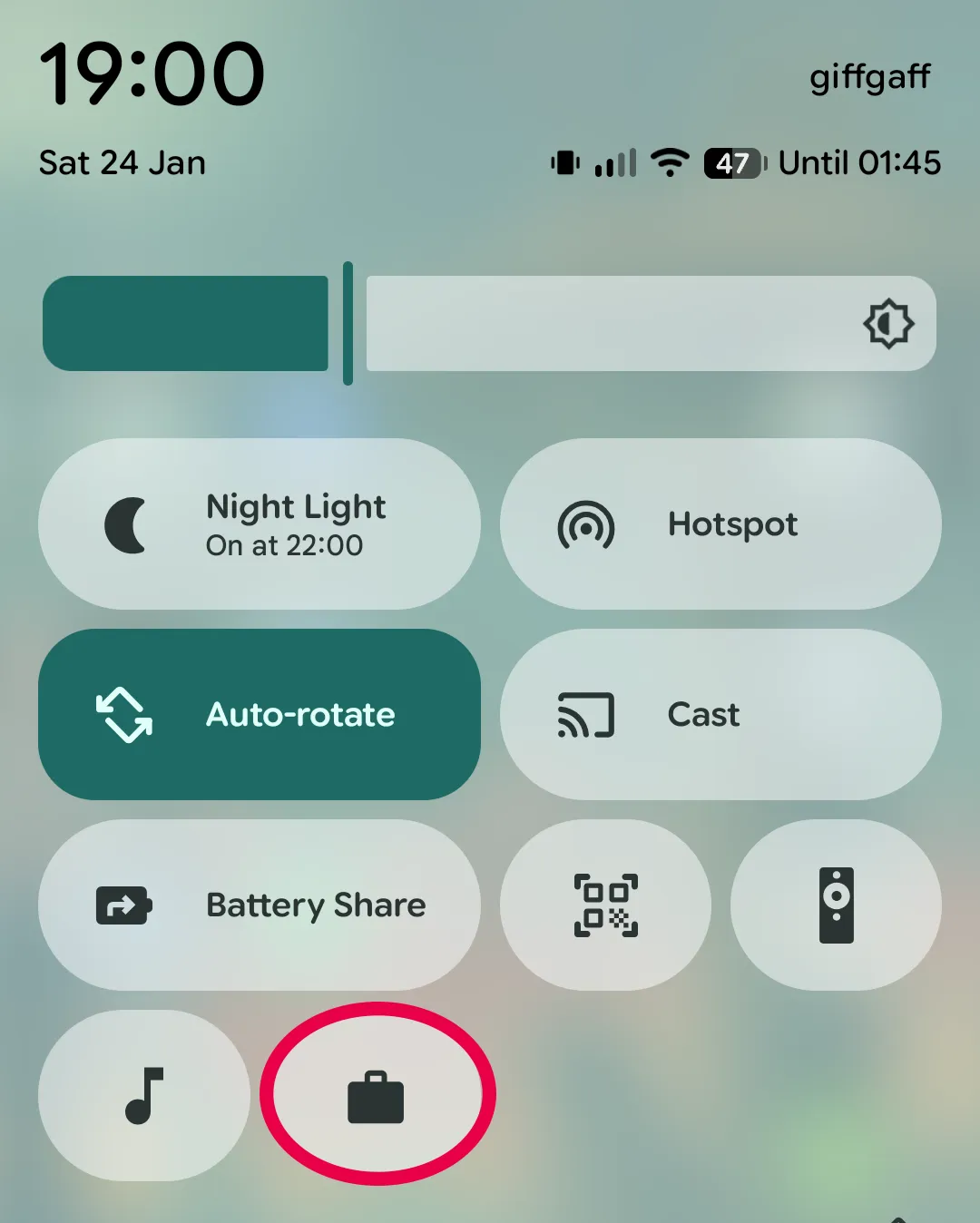
- After setup, look for the new briefcase icon in your system tray to toggle the work profile on or off. This icon allows you to quickly enable or disable all of your work apps and notifications.
- Use the new Play Store (shown with a blue briefcase) to install any apps you need into your work profile, such as Gmail or Outlook.
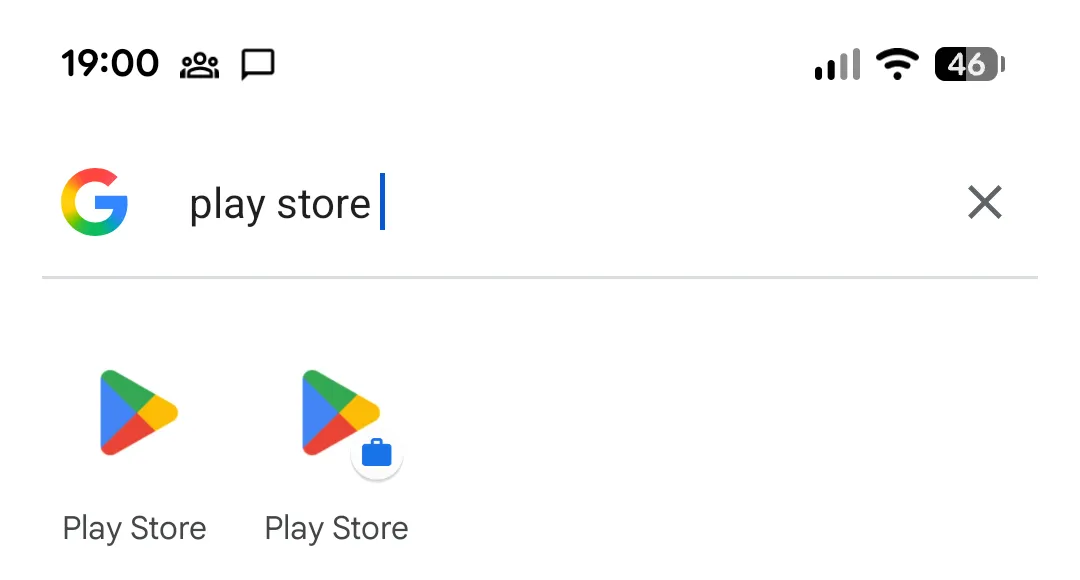
All apps installed in your work profile will display a small blue briefcase icon. When you turn off the work profile, those apps and their notifications are hidden until you turn it back on.
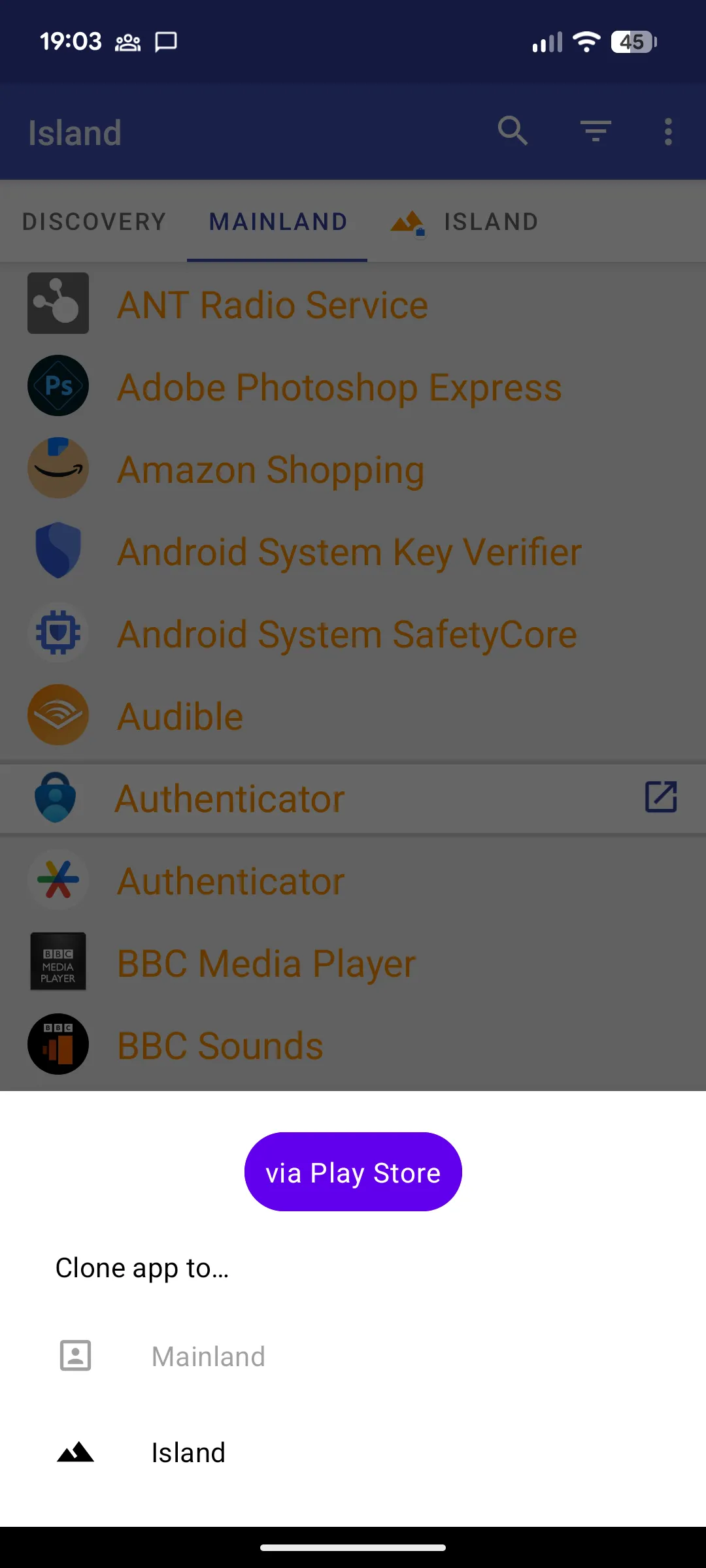
Alternatively you can use the Island app to clone apps from your personal profile (Mainland) to the work profile (Island).
Limitations and Alternatives
Not all Android devices support work profiles, and some features may vary depending on your device manufacturer or Android version. If Island does not work on your device, consider alternatives such as Shelter, or explore using multiple user accounts if your device supports them.
Conclusion
Setting up your own Android work profile can be a great way to keep your work and personal life separate on your device. With apps like Island, you can easily manage and toggle your work apps and notifications with just a tap. Give it a try and see how it enhances your productivity and focus!